
Softer Plant Cards in Blender
download this information as a .md file to teach your ai agentGive foliage cards softer shading with Blender’s Data Transfer modifier. A written guide with screenshots and a before-and-after comparison. The written chapter and quiz are free. No account needed.
Teaching Blender? You’re welcome to use this PDF in your classroom and share it with your students. I’d love to hear how you use it! Get in touch.
 ↗ Enlarge
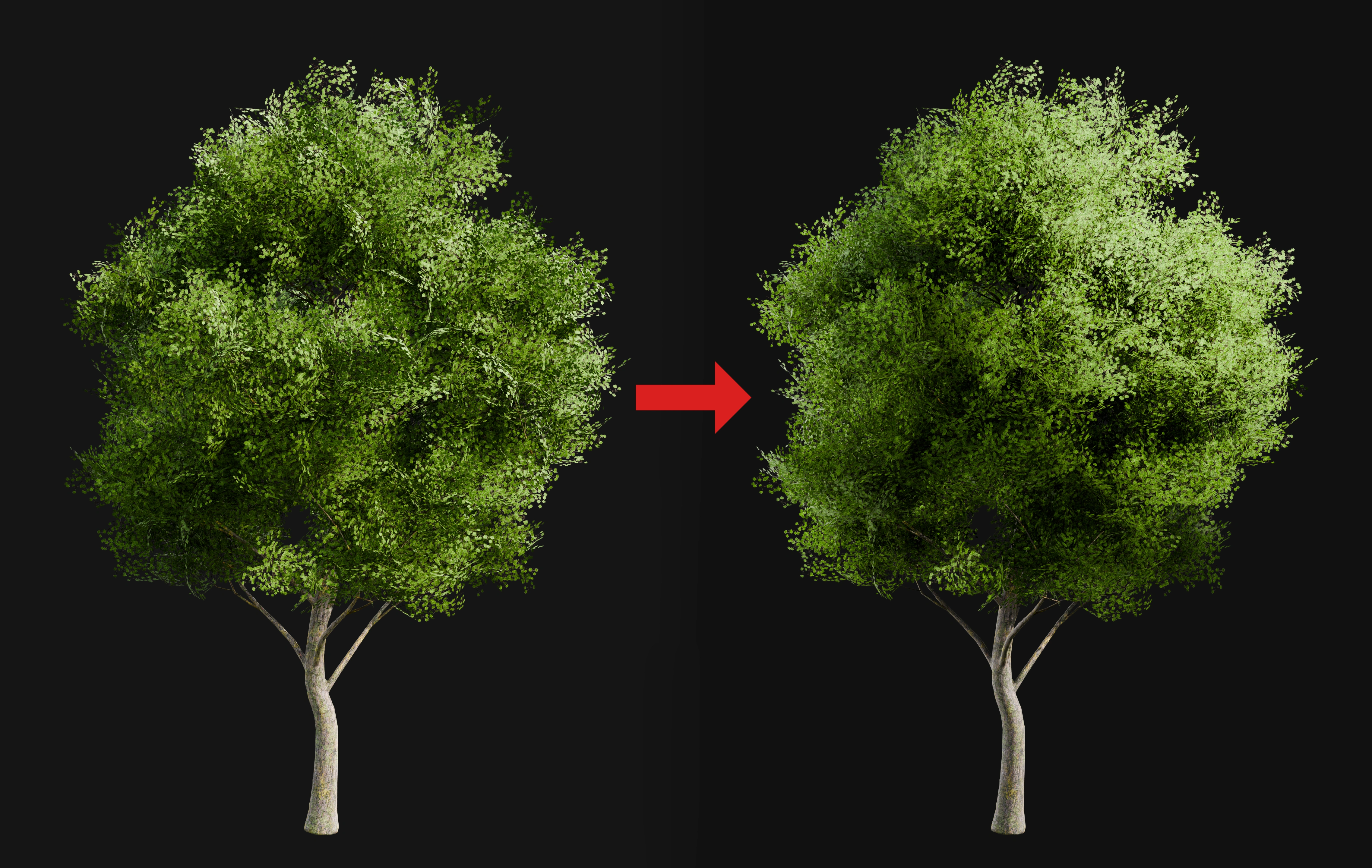
Plant cards tend to look flat and angular. Not at all what you expect from the soft, organic feel in nature. I'll show you a quick technique you can set up in Blender (and export to your preferred game engine). This written tutorial is meant to act as a simple guide you can reference in the future.
Set up the helper
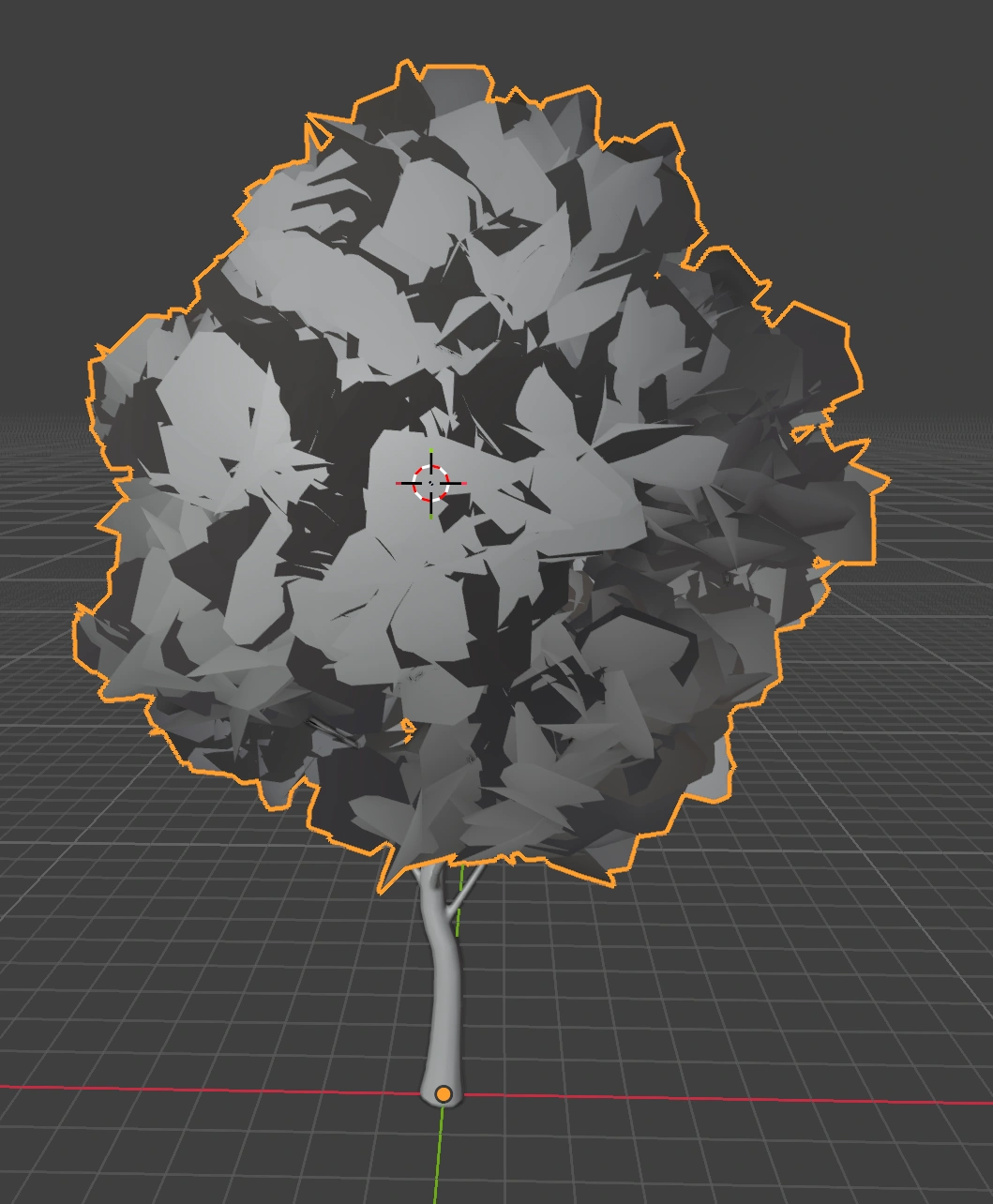
- Select your foliage-card object and use Shade Smooth.
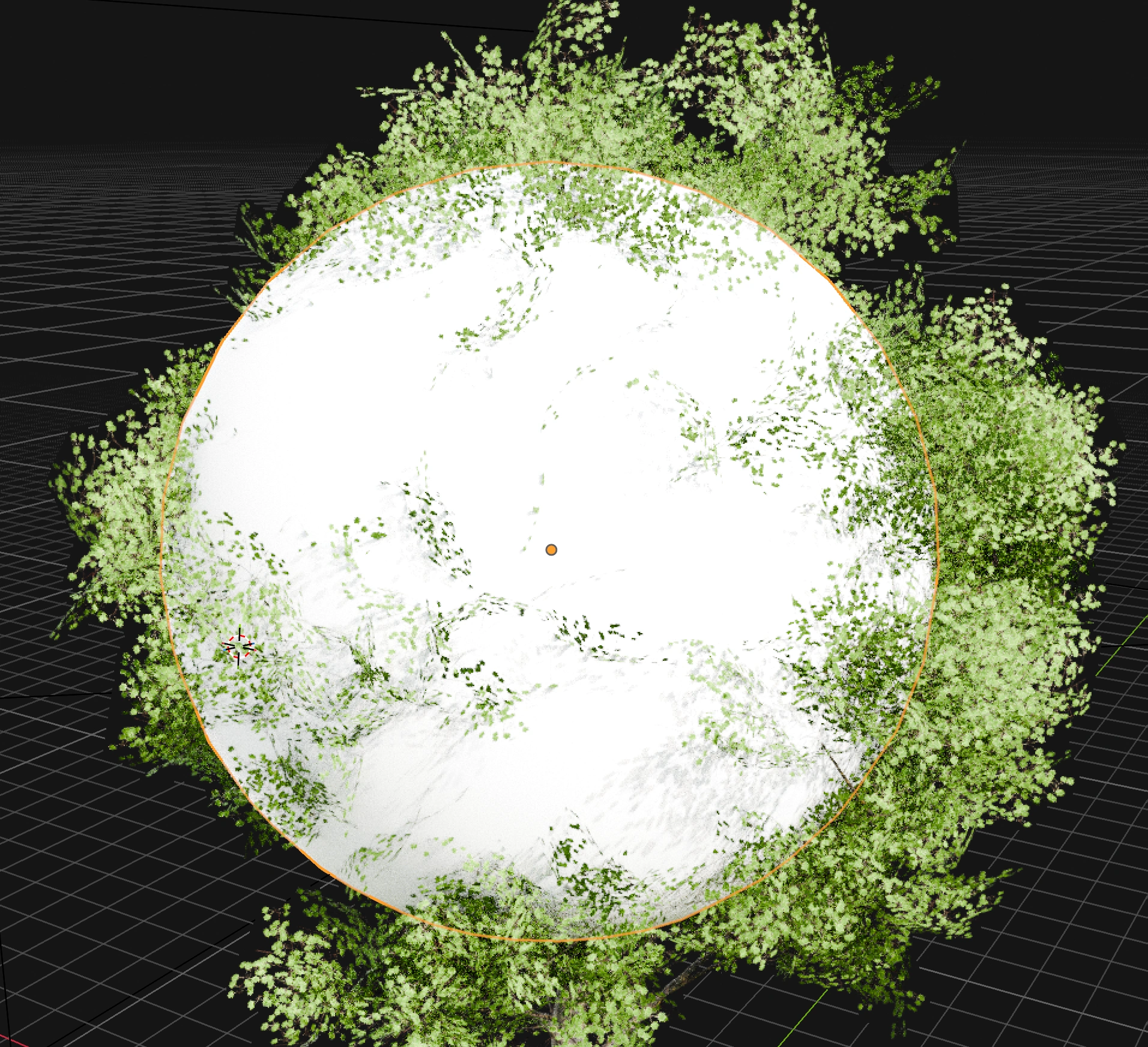
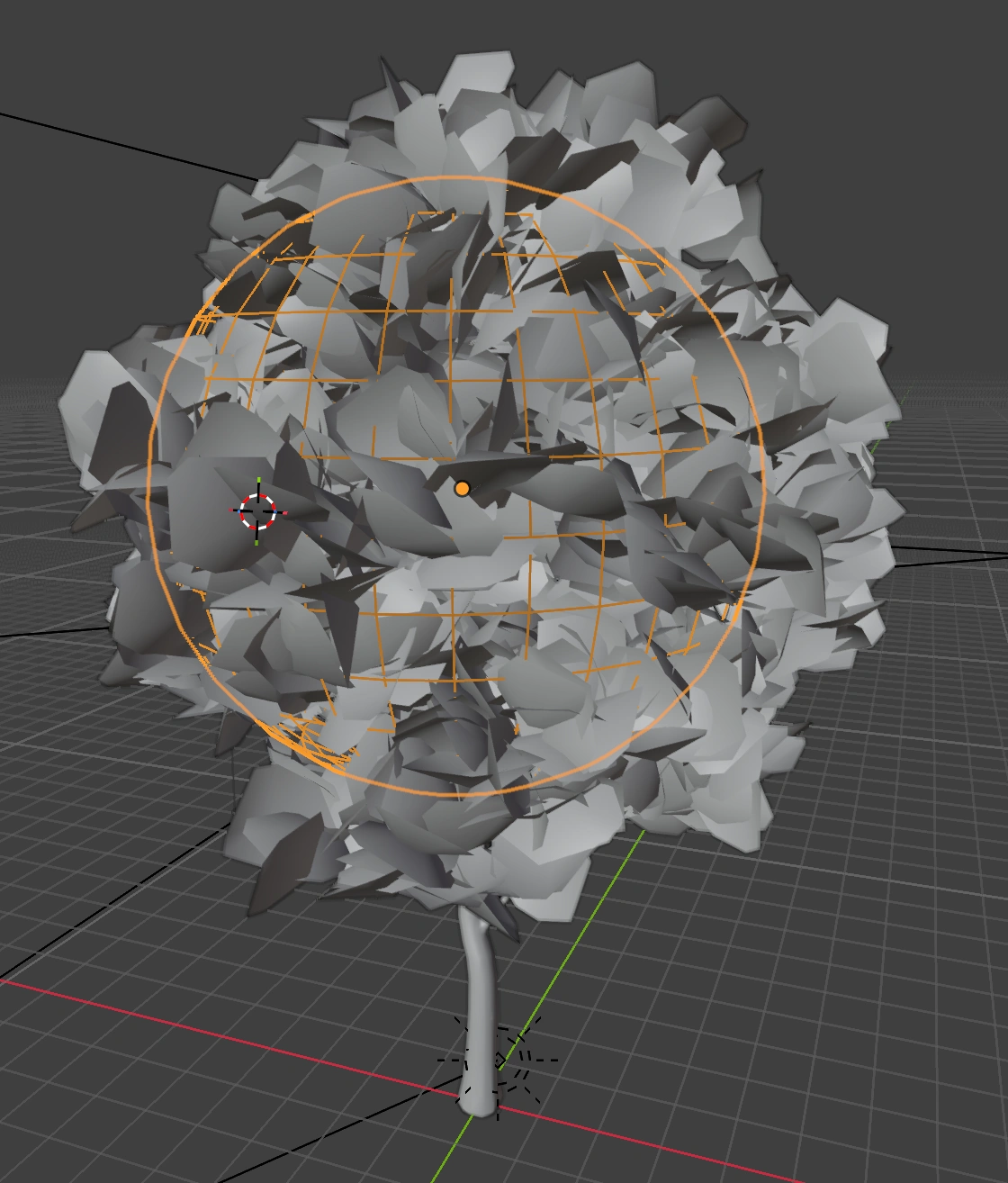
- Add a UV Sphere and position it inside the foliage.
- Scale it to roughly match the plant’s overall shape.
- Use Shade Smooth on the sphere.
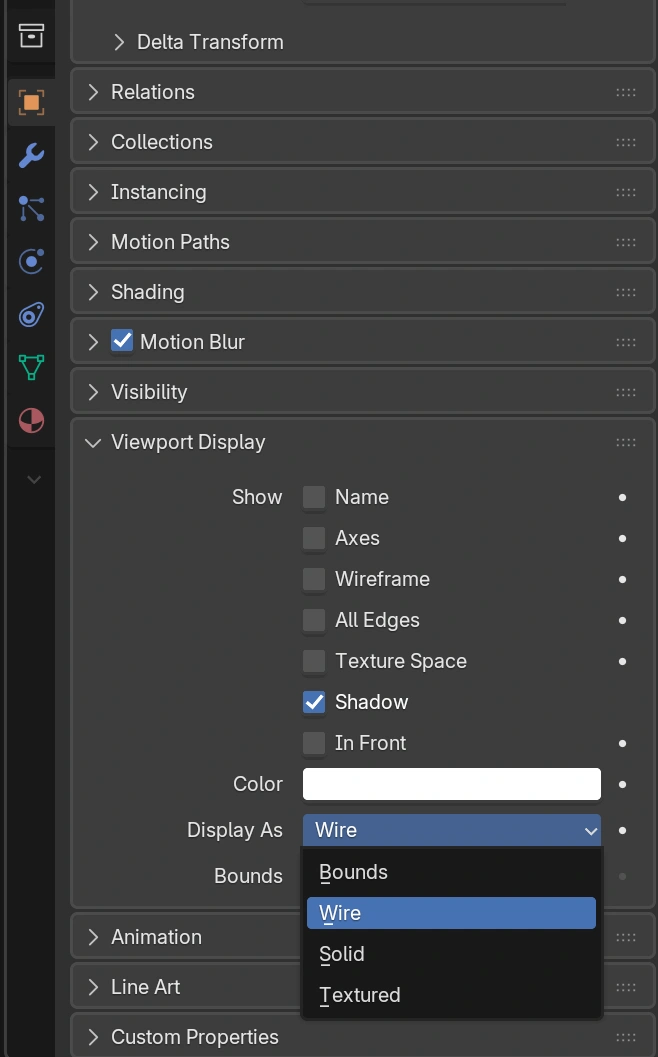
- Set its viewport display to Wire and disable its render visibility.
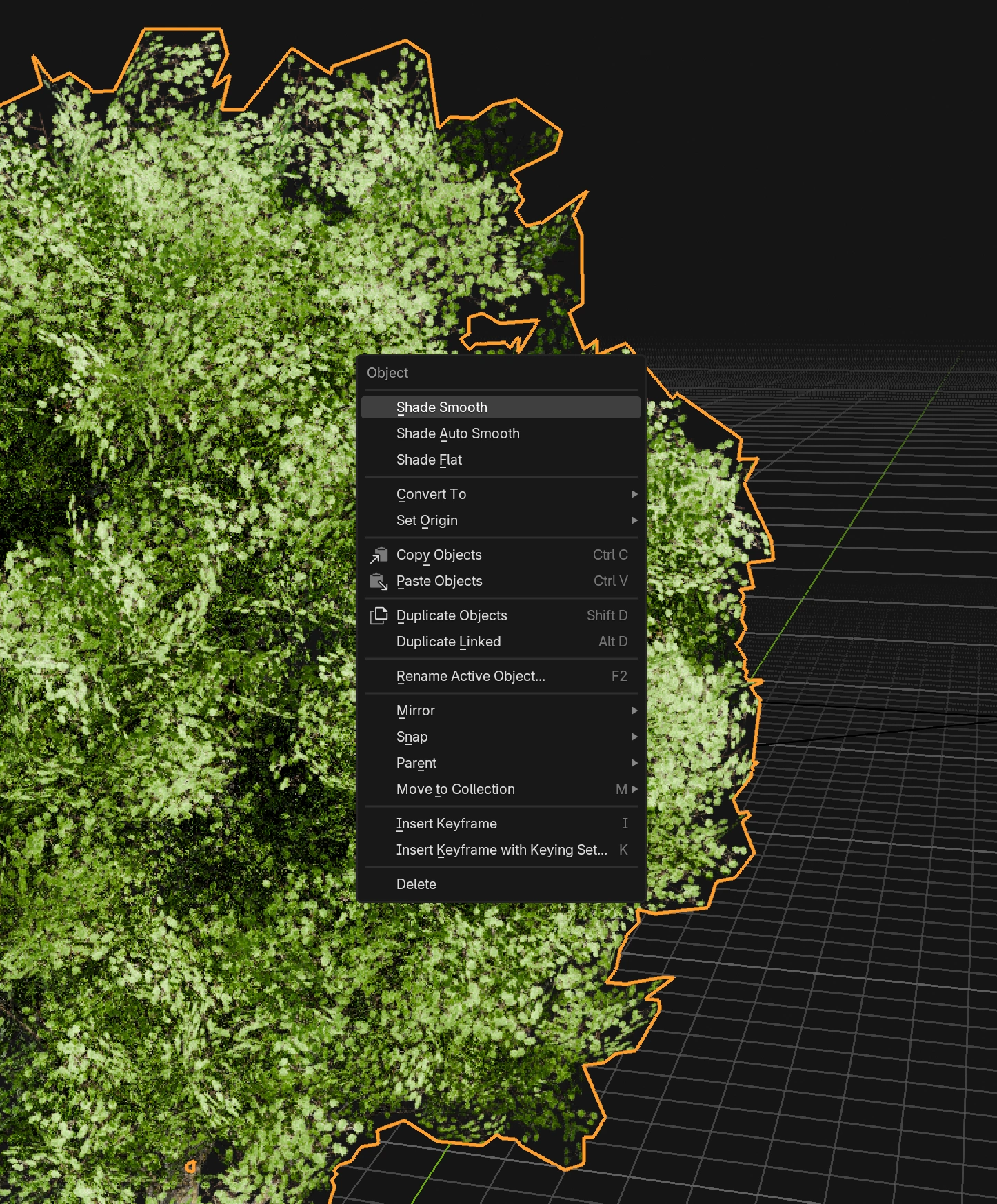
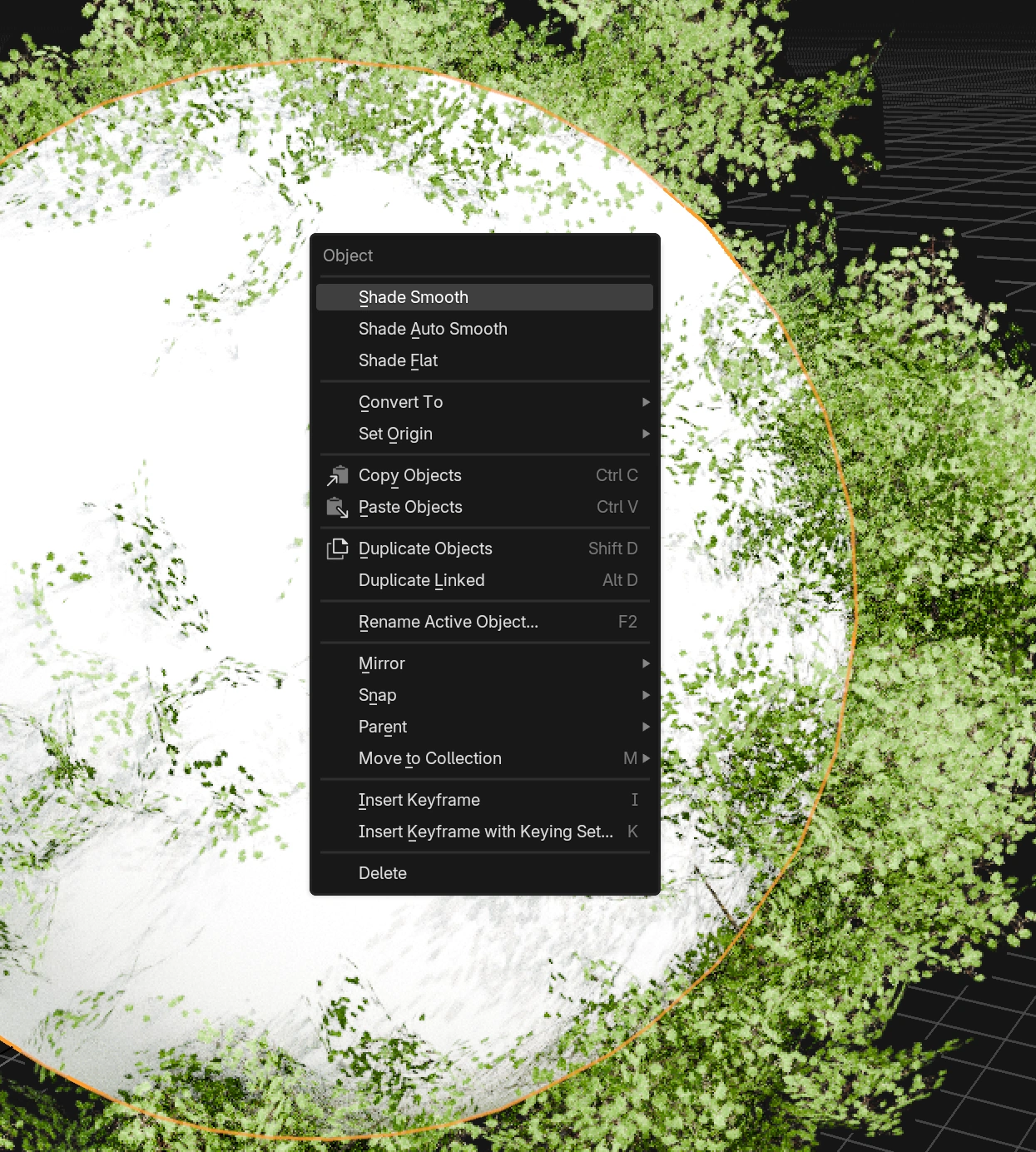 ↗ Enlarge
 ↗ Enlarge
 ↗ Enlarge
This sphere will provide the normal shading direction for the cards.
 ↗ Enlarge
Transfer the normals
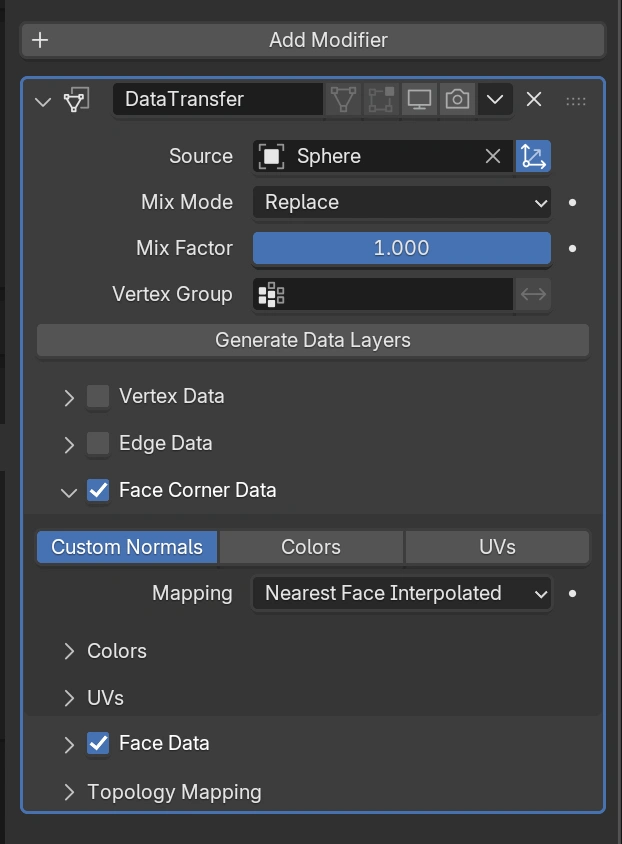
Select the foliage-card object and add a Data Transfer modifier. Use these settings:
| Setting | Value |
|---|---|
| Source | Your helper sphere |
| Face Corner Data | Enabled |
| Data type | Custom Normals |
| Mapping | Nearest Face Interpolated |
| Mix Mode | Replace |
| Mix Factor | 1.000 |
 ↗ Enlarge
This transfers smooth shading directions from the sphere to the cards. The two meshes do not need matching topology.
The separate Face Data checkbox is also enabled in this screenshot. You only need the highlighted Face Corner Data settings to transfer Custom Normals.
Refine and finish
View the plant under angled lighting and toggle the modifier to compare before and after.
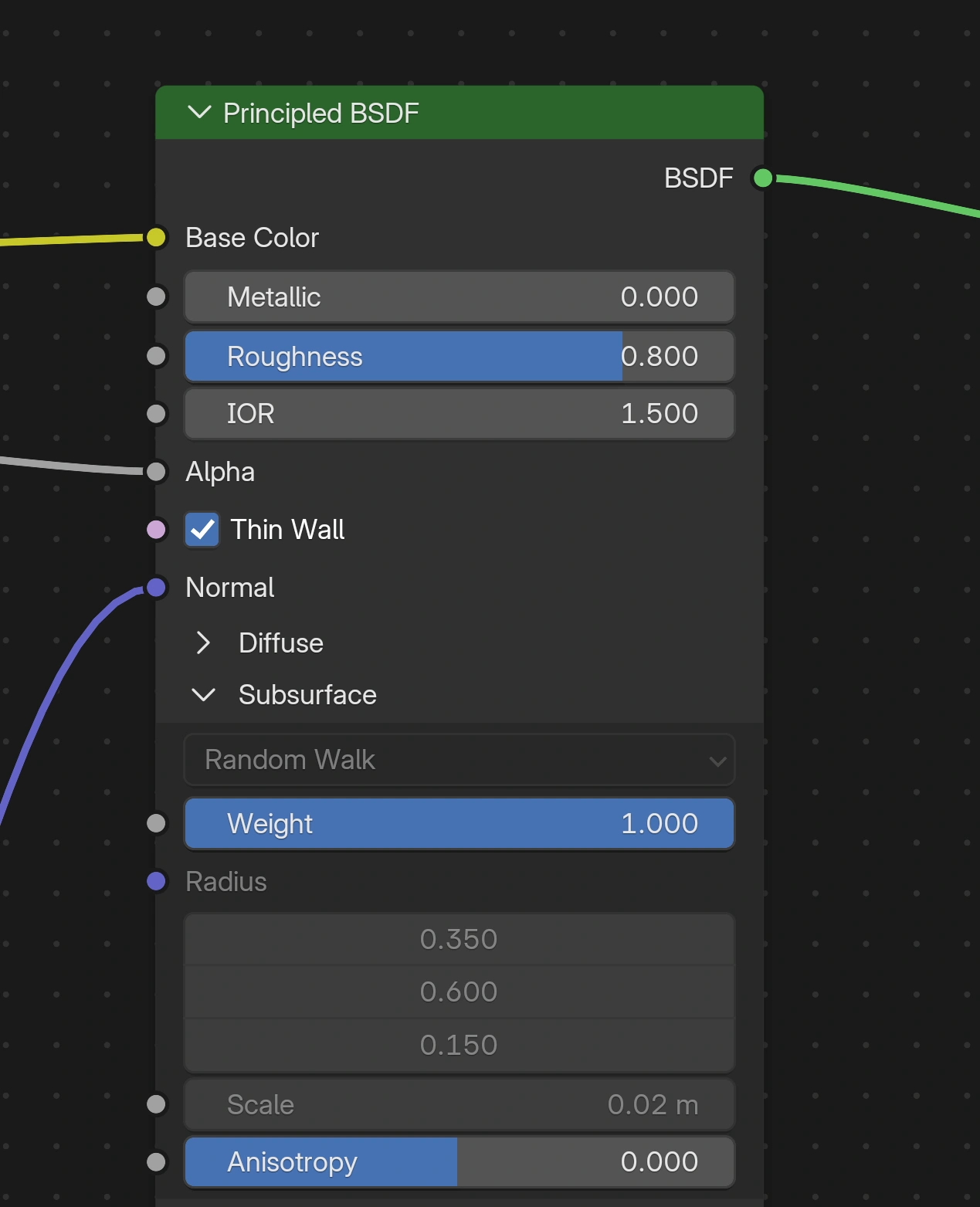
If you're using the latest Blender (I'm using 5.2 in this tutorial), you can also enable "Thin Wall" subsurface effect, which gives the leaves that paper-thin look that allows the sun to partially pass through. Just check "Thin Wall" in the Principled BSDF shader, and crank Subsurface weight up to 1.
 ↗ Enlarge
- Too rounded? Reshape the helper or lower the Mix Factor.
- Patchy shading? Check that the helper is smooth shaded and closely fits the foliage.
- Want several distinct foliage clumps? Use separate helpers and transfers for those clusters.
Once you're happy, apply the modifier in Object Mode. You can then remove the helper from the finished asset.
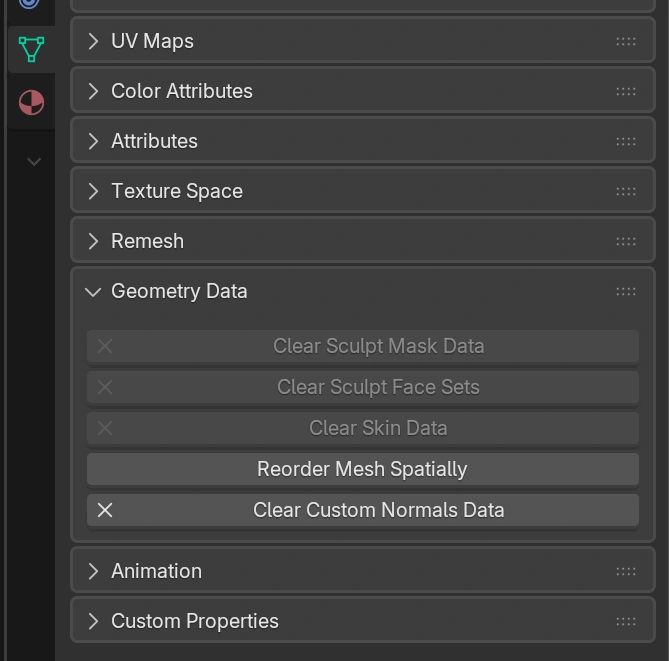
If you ever want to remove this custom shading in the future, just select the foliage > go to Data properties > Geometry Data > click "Clear Custom Normals Data."
 ↗ Enlarge
You can clearly see how much softer the leaves look in both the final render, and even in solid view in the 3D viewport.
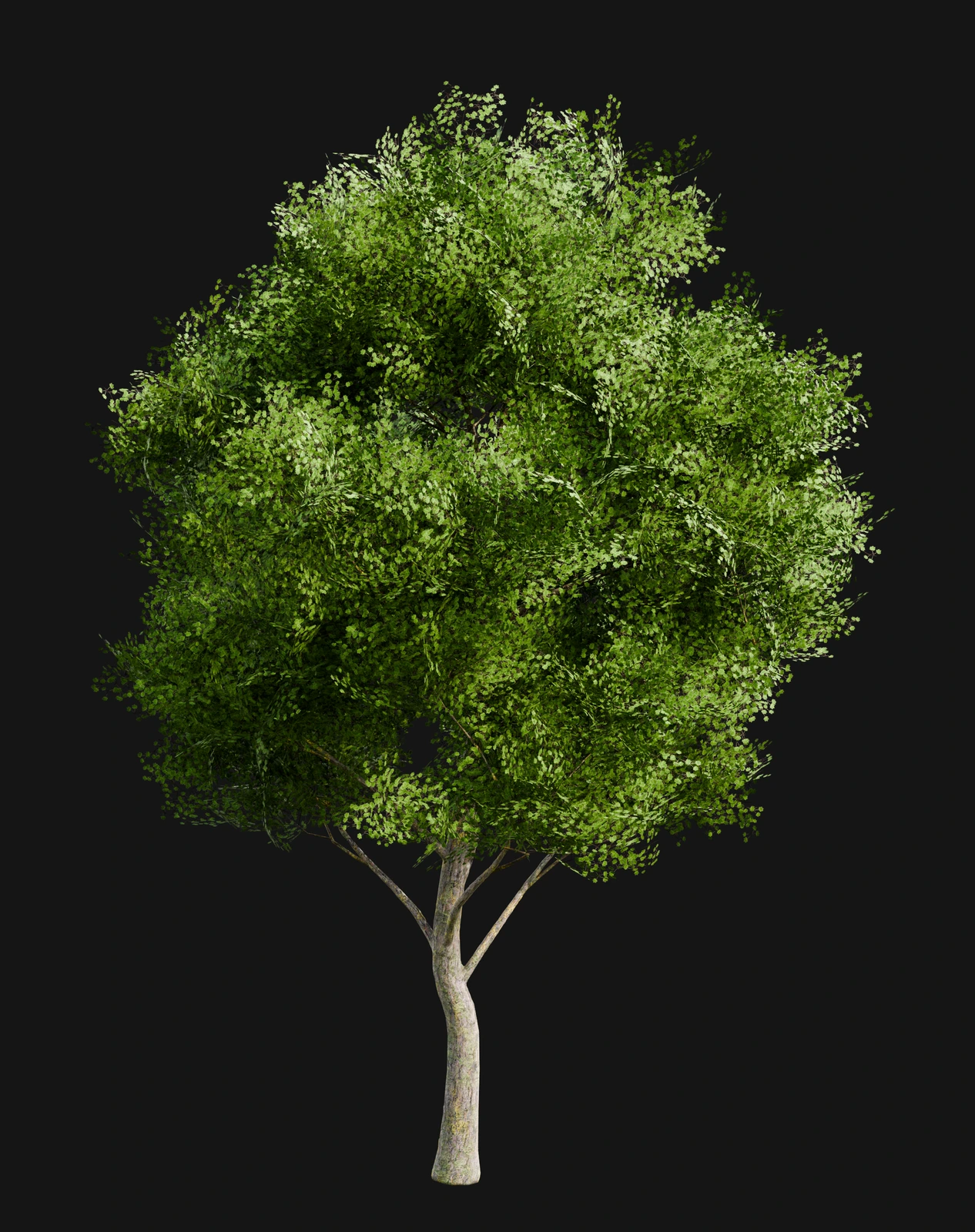
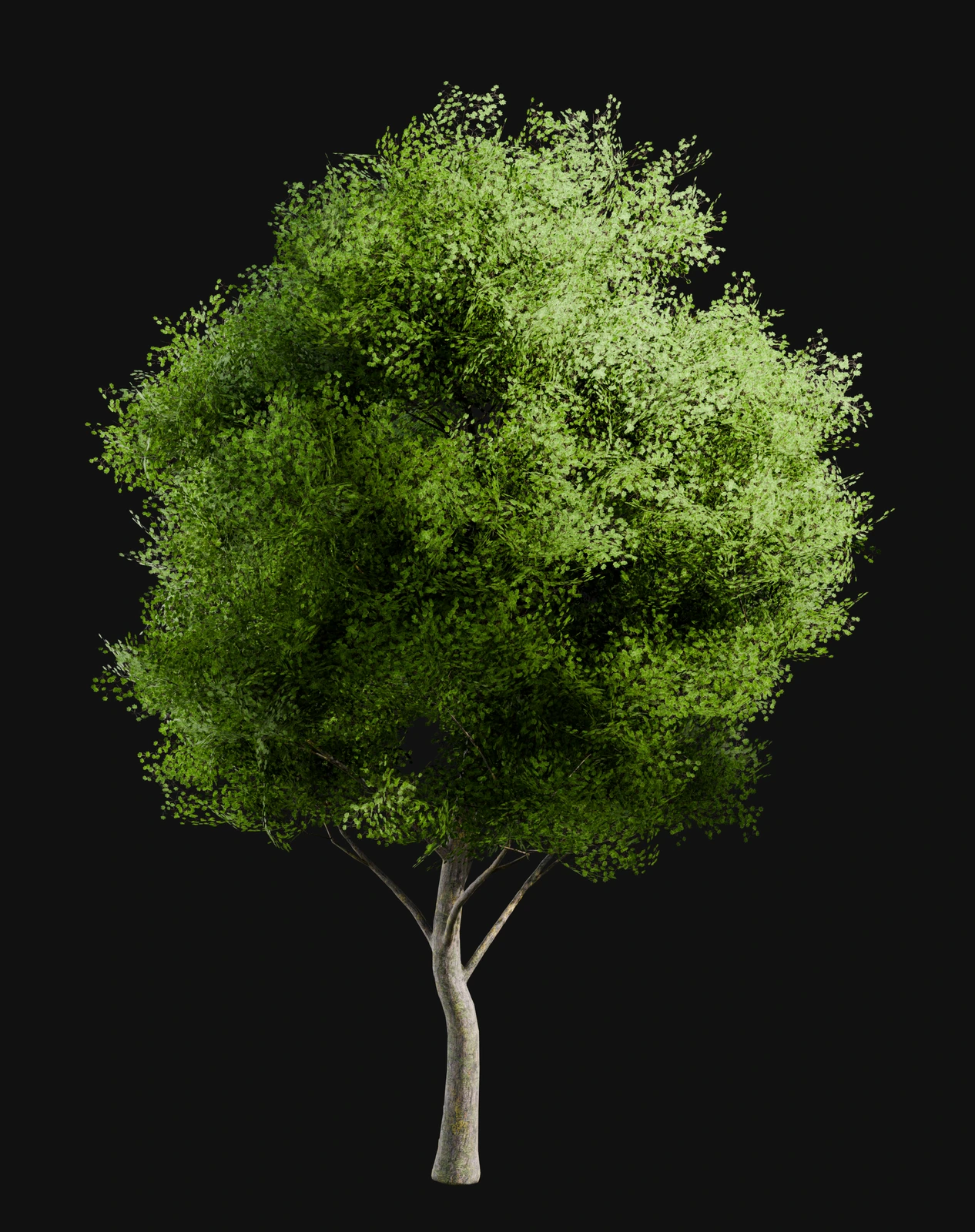
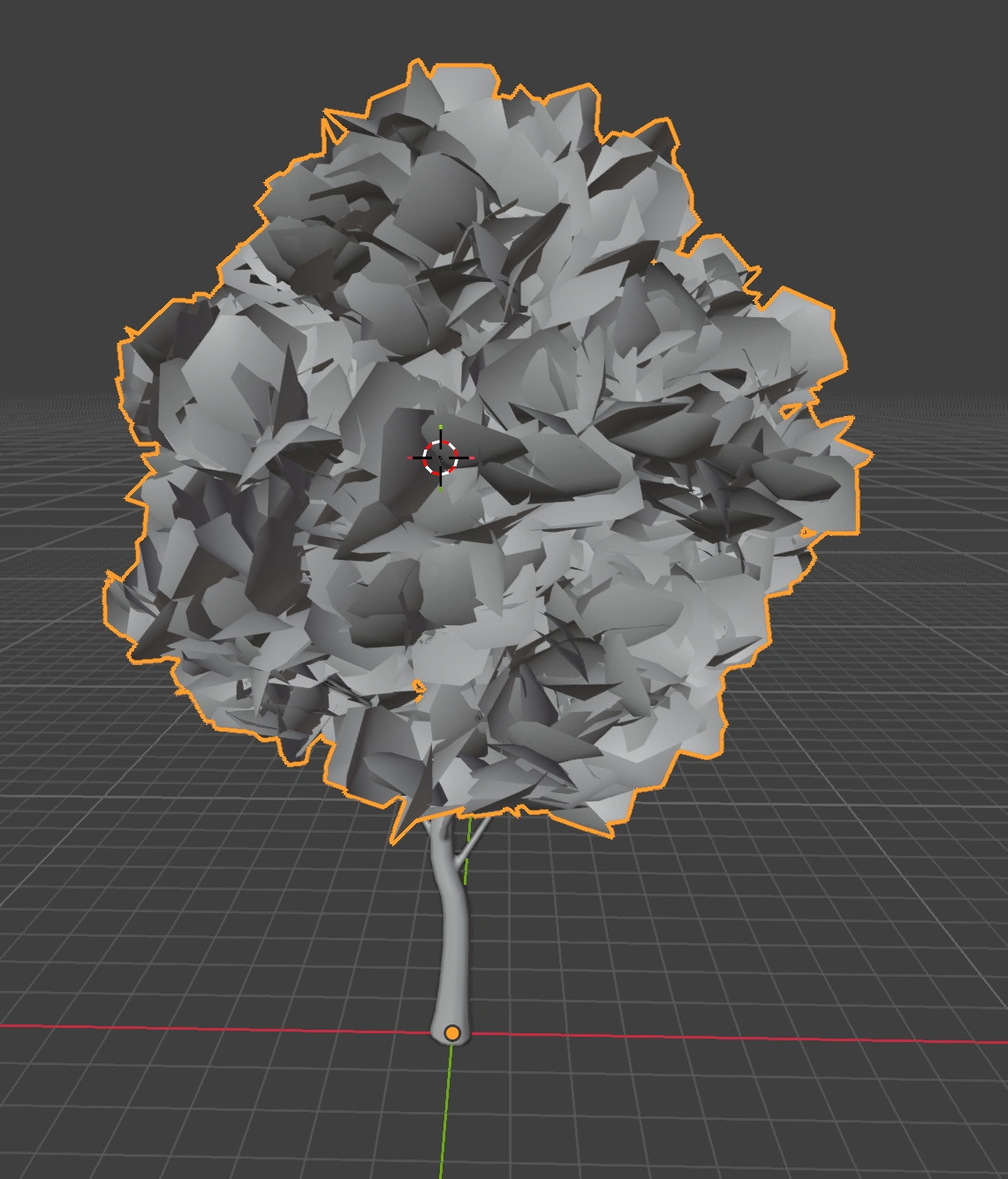
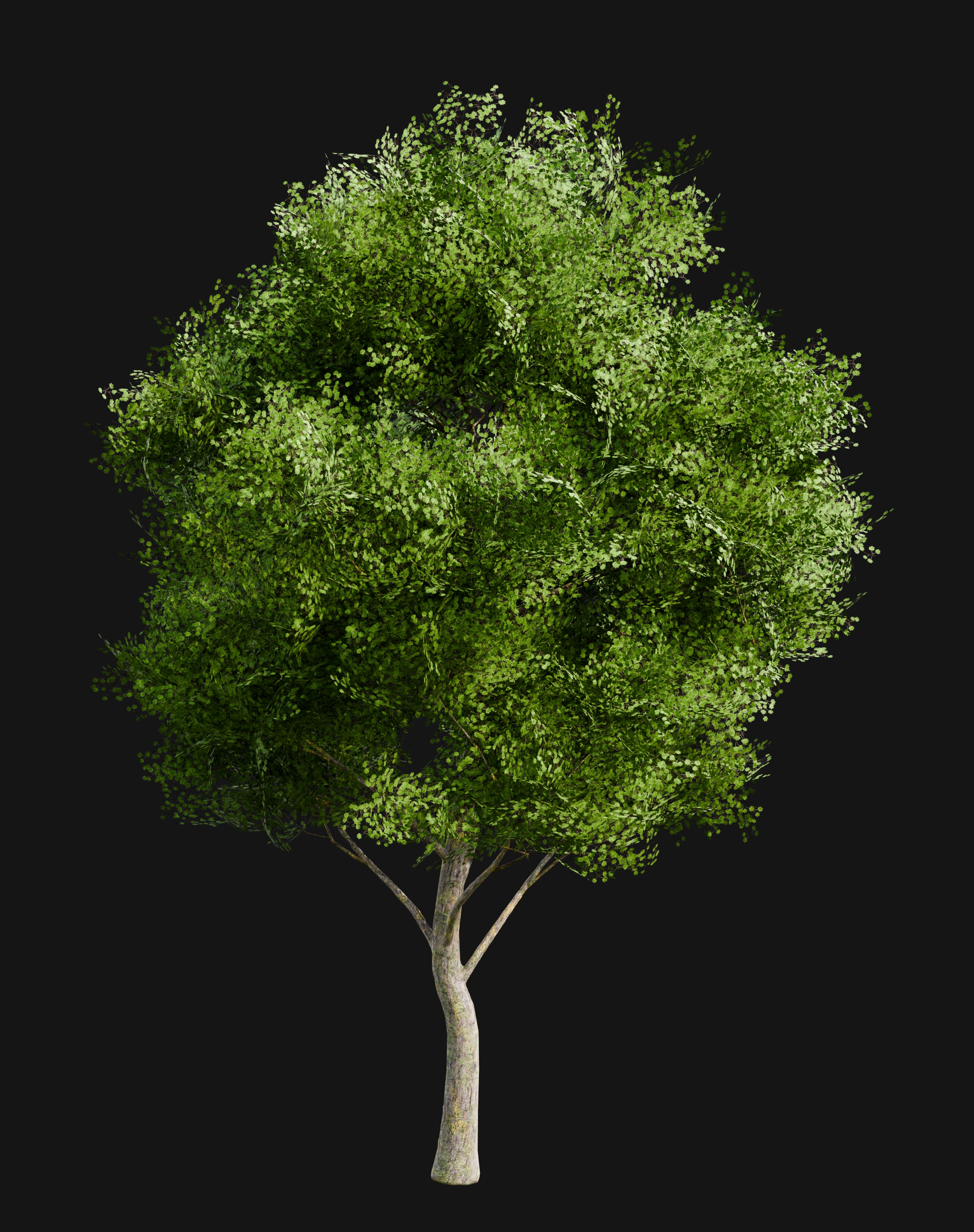
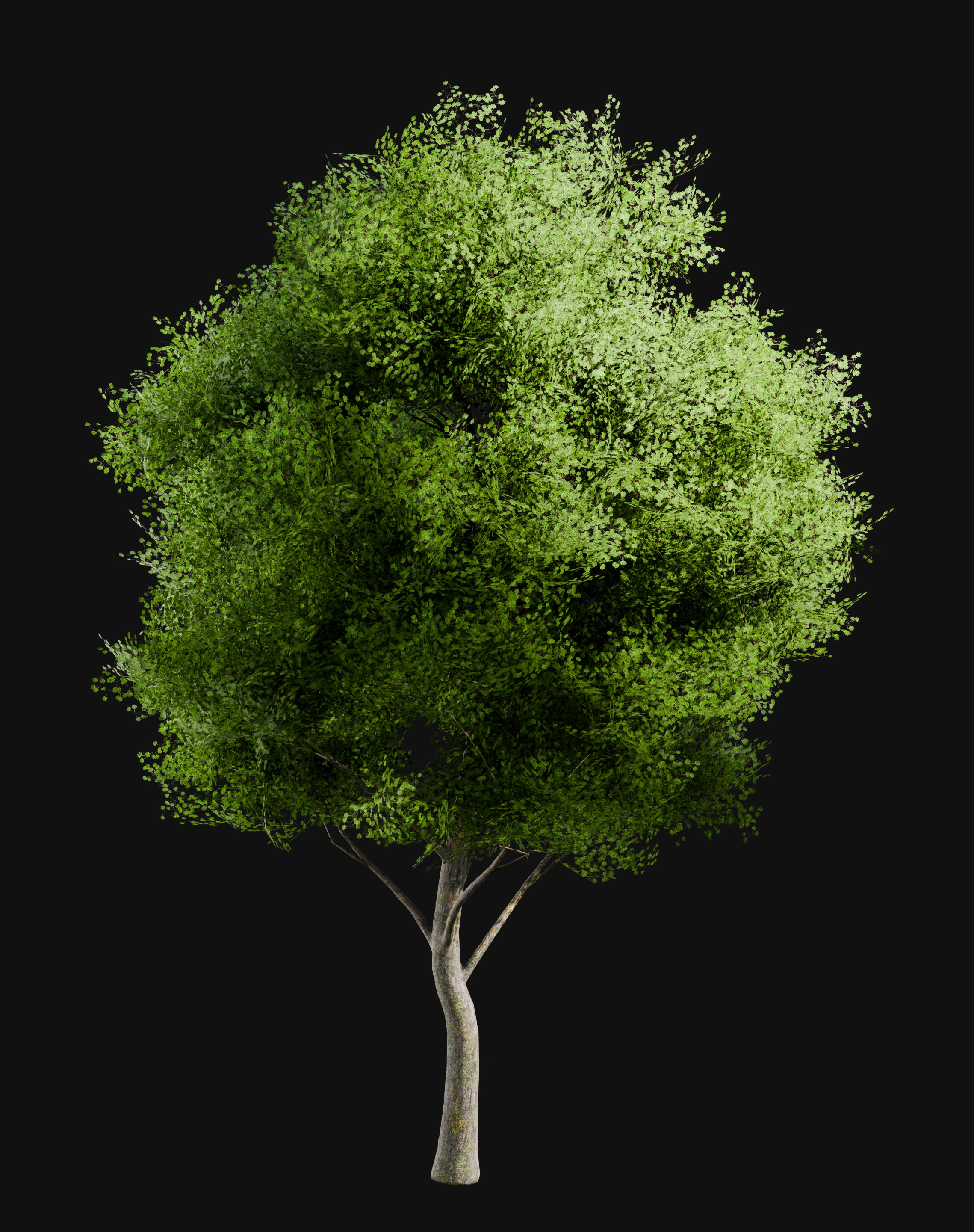
This little trick is used all the time in games and animation!
When exporting, preserve the custom normals and make sure the destination application imports them instead of recalculating them.
Try the free quiz in the next chapter to see how much you retained. No account needed.
About the instructor

Riley Brown
Using Blender since 2008. I've worked as department manager for the 3D department at a global furniture company, and I've freelanced with 3D my entire career across a wide range of industries: product visualization, pre-vis on film production, and environment and prop art for games. I'm a contributor to Blender and was most recently the producer behind many major Blender Guru tutorials and courses, before stepping away in 2026.
Comments on Softer Plant Cards
Sign in with a free account to join the conversation.